Using the Expand Query input on the Get a Row by ID action in Power Automate allows you to efficiently retrieve and utilize data in your automated workflows. In this tutorial, you’ll learn how to set up the (Dataverse) Get a Row by ID action in Power Automate and leverage the Expand Query to access related tables and complex data models. This feature enhances your ability to create robust Power Automate flows by allowing you to bring in not only a single row of data but also related information, streamlining your process development. With these skills, you can effectively call on the retrieved data in subsequent actions, making your flows more dynamic and powerful. Dive into this guide to harness the full potential of Microsoft Power Automate with the Expand Query and Get a Row by ID functionality.
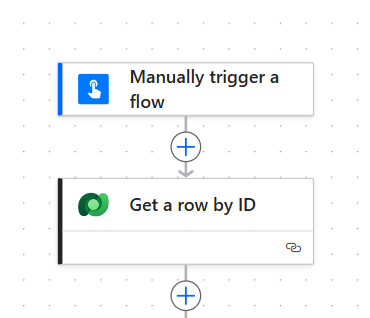
Link to additional Microsoft Documentation on the Get a row by ID action: Get a row by ID from Dataverse – Power Automate | Microsoft Learn
Get Data: Setup the Get a row by ID
Use Expand Query to specify an OData-style expression that defines which data from related tables is returned. If you include only the name of the navigation property, you get all the properties for the related rows. To use the Expand Query box in a flow step, enter an OData expression as shown in the following image. This example shows how to get the contactid and fullname columns for the primarycontactid of the account.
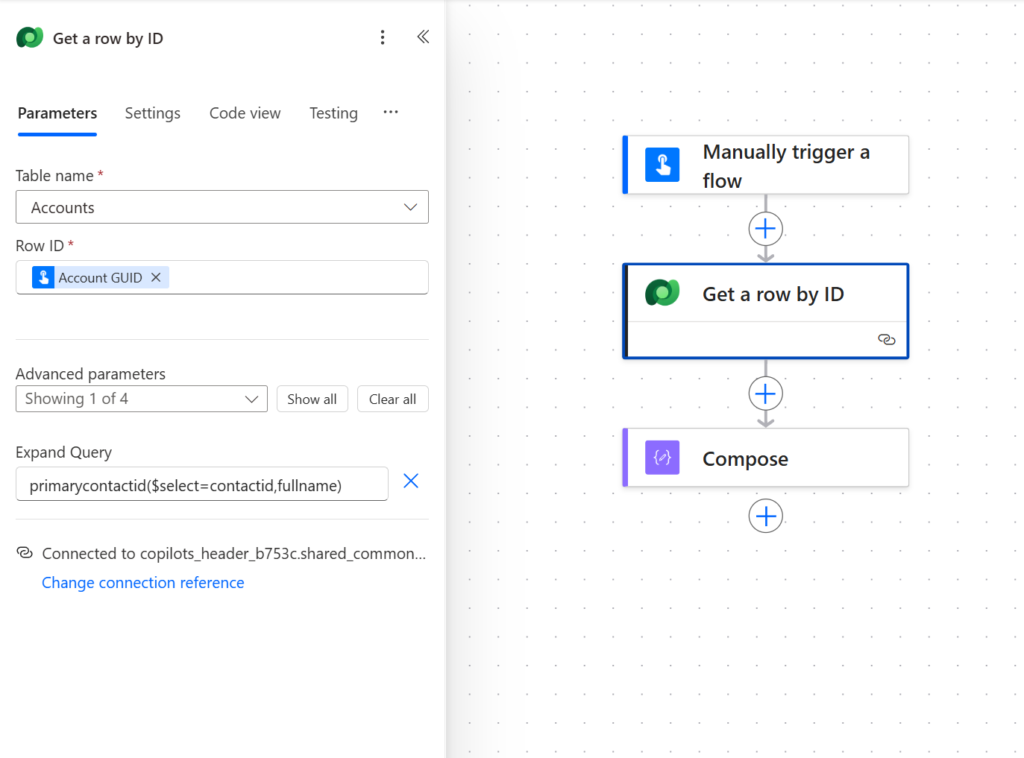
LOOKUP_FIELD_SCHEMA_NAME($select:FIELD_SCHEMA_NAME1,FIELD_SCHEMA_NAME2,ETC)Example: primarycontactid($select=contactid,fullname)
Link to additional Microsoft Documentation on the Expand Query property: Get a row by ID from Dataverse – Power Automate | Microsoft Learn
Using Data: Use the Output in Subsequent Actions
When building Power Automate flows, you may need to access the additional data retrieved by the Expand Query, especially since these outputs might not appear directly in the Dynamic Content panel. To effectively call on this information within your flow, you should use a custom expression. This involves constructing an expression using the format below.
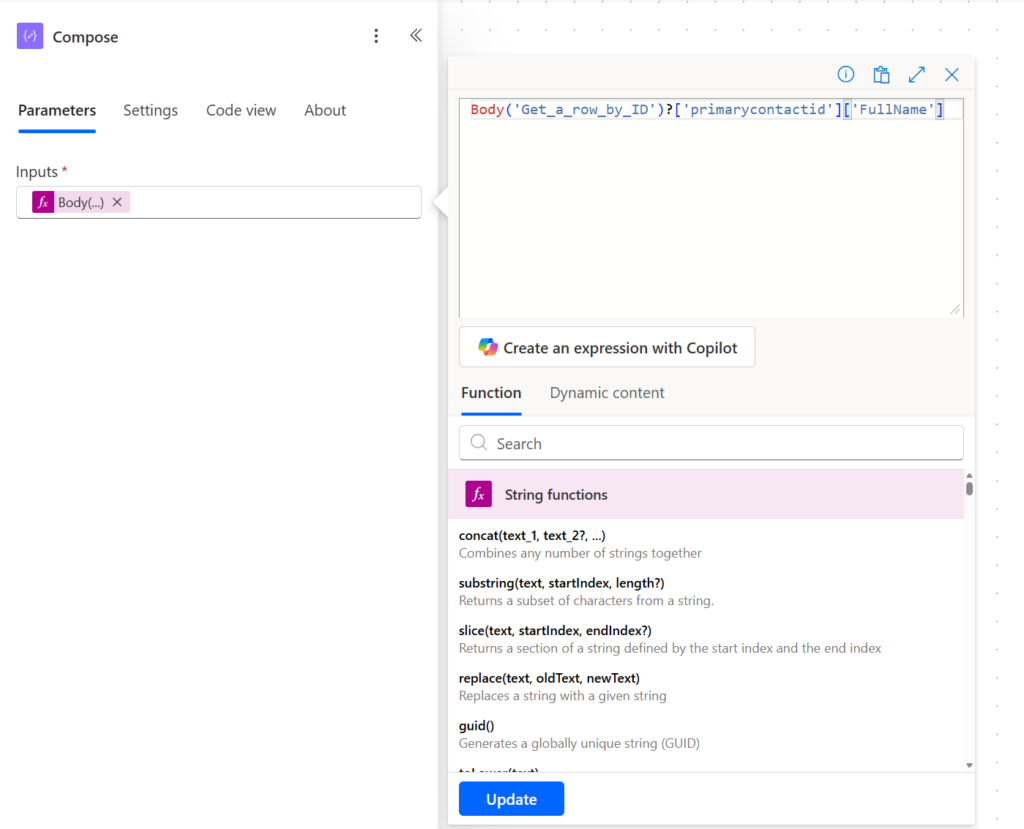
Body('ACTION_NAME')?['LOOKUP_FIELD_SCHEMA_NAME']['COLUMN_LOGICAL_NAME']Example: Body(‘Get_a_row_by_ID’)?[‘primarycontactid’][‘FullName’]
ACTION_NAMEwith the specific action’s nameLOOKUP_FIELD_SCHEMA_NAMEwith the field schema name of the lookup field regarding the relationshipCOLUMN_LOGICAL_NAMEwith the logical name of the desired column on the related record
By replacing the above values, you can seamlessly extract and utilize the necessary data in later flow steps, ensuring your automation logic is both flexible and comprehensive.
In Conclusion
In conclusion, mastering the use of the Expand Query input in the Get a Row by ID action within Power Automate can significantly enhance your workflow capabilities. By effectively setting up this action and utilizing custom expressions to call on the expanded data, you can access and manipulate complex data structures seamlessly. This not only streamlines your automation processes but also allows for more dynamic and powerful flow designs. As you continue to explore Power Automate, integrating these techniques will help you build more efficient and responsive workflows.
Now that you’ve gained these insights, consider implementing them in your existing or new flows to realize their full potential. Happy automating!